


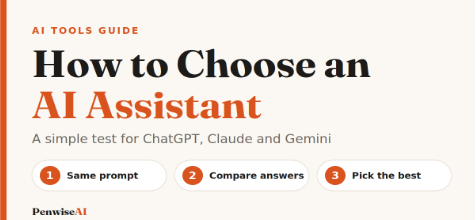
Choosing an AI assistant is hard because every tool sounds good on paper. Before you test anything, it helps to read a clear ChatGPT vs Claude vs Gemini comparison to see where each tool tends to be strong. After that, stop reading opinions and test the tools on your own work. This guide shows a simple method you can finish in one afternoon.
Step 1: List the tasks you do most
Write down three to five tasks you would really give an AI. For example: writing a client email, summarizing a long report, planning a week of social posts or explaining a hard topic. Real tasks give you real answers. A request like “write a poem” tells you very little about how a tool will help your job.
Step 2: Write one clear prompt for each task
A prompt is the instruction you type. Keep it clear. Say who the AI should act as, what the task is, who the audience is and how the answer should look.
Here is an example: “You are a friendly customer support agent. Write a 100-word reply to a customer whose order is late. Keep the tone calm and offer one solution.”
Save each prompt in a note so you can reuse it. If writing prompts feels slow, the free AI Prompt Builder turns a few answers into a ready-to-use prompt that you can paste into any tool.
Step 3: Run the same prompts in each tool
Open ChatGPT, Claude and Gemini, and paste the exact same prompt into each one. Do not change the wording between tools, or the test is not fair. The free version of each tool is usually enough for a first test, though limits differ and change over time.
Step 4: Score each answer
After each answer, give it a quick score from one to five on four things:
- Is it useful for the task?
- Does the tone sound right?
- Is it clear, without extra padding?
- How much editing would it need?
Write the scores in a small table. Patterns appear fast. One tool may write warmer emails, while another gives tidier summaries.
Step 5: Check the facts
AI tools can sound sure and still be wrong. Check any names, numbers, dates and quotes in the answers. Notice which tool made fewer mistakes on your tasks, and which one told you when it was unsure. Do not trust an important detail until you have confirmed it somewhere else.
Step 6: Look at the extras that matter to you
Some people need to upload files. Others care most about working inside the apps they already use, or about privacy settings. Features and plans change often, so read what each tool offers right now instead of relying on old articles. Pick the extras that match your daily work and ignore the rest.
Step 7: Choose, then review later
Add up your scores and pick the tool that helped most. Many people keep a second tool for special jobs, and that is fine. Set a reminder to repeat the test in a few months, because these tools keep changing.
Common mistakes and how to fix them
- Judging from one answer. Run each prompt at least twice, because answers can differ each time.
- Using vague prompts. If your prompt is unclear, every tool will look weak. Add the audience, length and tone.
- Comparing different prompts. Use the same words in every tool.
- Paying before testing. Try the free versions first.
- Sharing private information. Leave out passwords, ID numbers and client secrets.
The simplest answer
The best AI assistant is the one that gives you useful drafts on your own tasks with the least editing. Run this test once, keep your scores, and you will have a clear answer based on your own work instead of someone else’s opinion.
FAQ
Is the free version enough to test? Usually yes, for a first test. Limits and features differ between tools and plans, so check what you get before you decide.
Can I use more than one assistant? Yes. Many people use one main tool and a second one for jobs it handles better.
How often should I test again? Every few months, or when a tool releases a big update.
Note: AI tools can make mistakes. Always check important facts, and do not share private information in your prompts.